


PREPARING TO MOVE TO A NEW MOBILE DEVICE (ANDROID)
PROCESS TIME: 15-25 minutes
DESCRIPTION:
When moving to a new mobile device, there are steps that need to be taken with your old phone before switching over to the new device.
**If your Phone number has changed please reach out to Helpdesk to update your MFA number associated with your account, this is something only they can complete**
Most users use one or a combination of three applications on either android or iPhone devices:
Teams, Outlook and Microsoft authenticator
ON YOUR OLD DEVICE (ANDROID):
*ALL ANDROIDS TEND TO HAVE SLIGHT DIFFERENCES BUT ARE GENERALLY ALIKE*
- First, navigate to settings on your android device and then look for a accounts option similar to this:
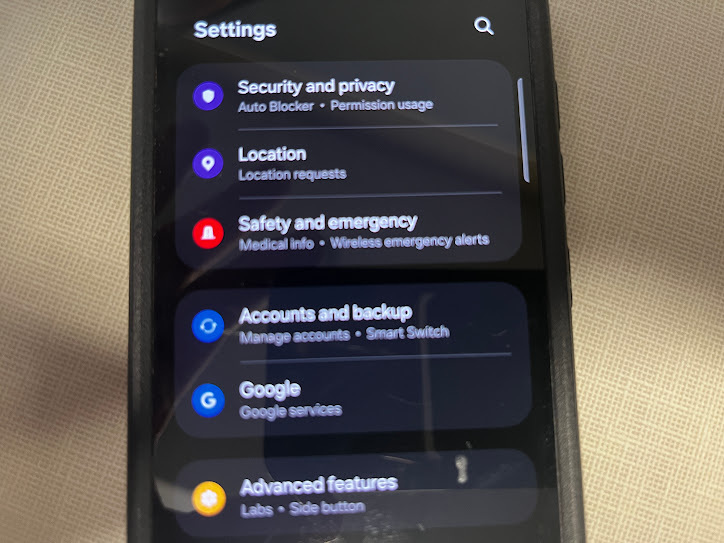
- Click on accounts and backup or whatever accounts option you show and locate your county account
**If you have multiple accounts showing repeat process after completion of first account**
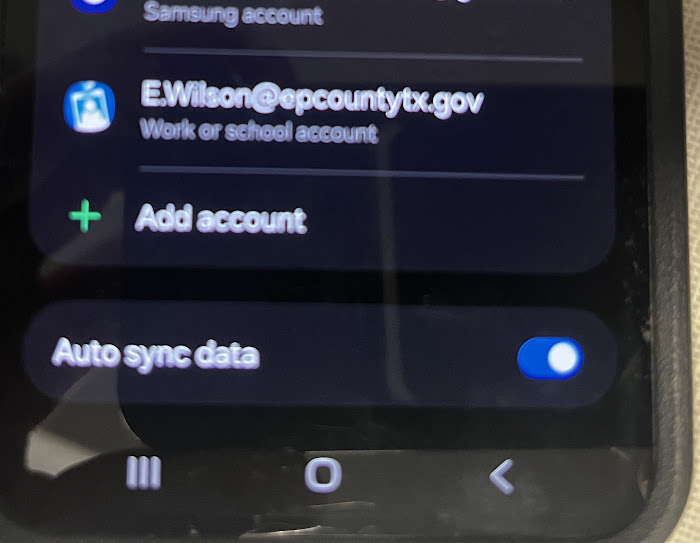
- When you select the account it should have a remove option select and remove
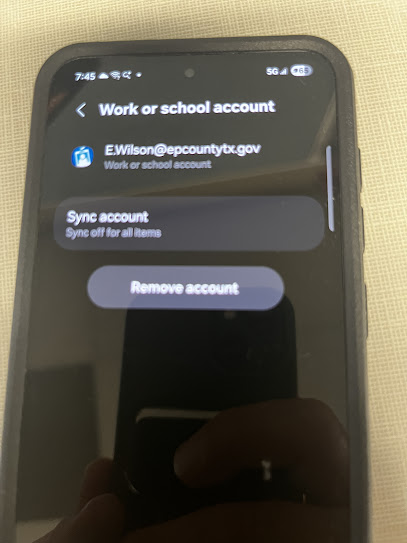
**NOW ONLY FOLLOW FOR WHAT APPLICATIONS YOU USE**
Microsoft Authenticator:
**If you have multiple accounts showing repeat process after completion of first account**
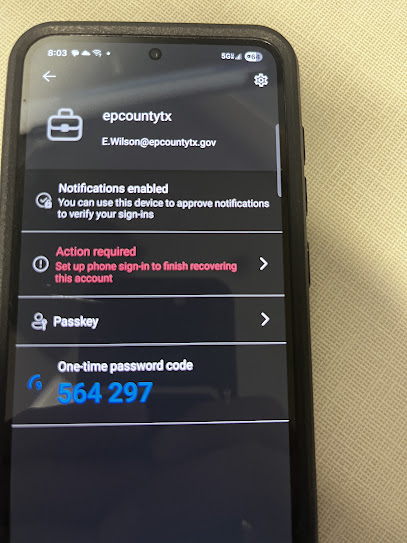
- Open Authenticator app and select your account:
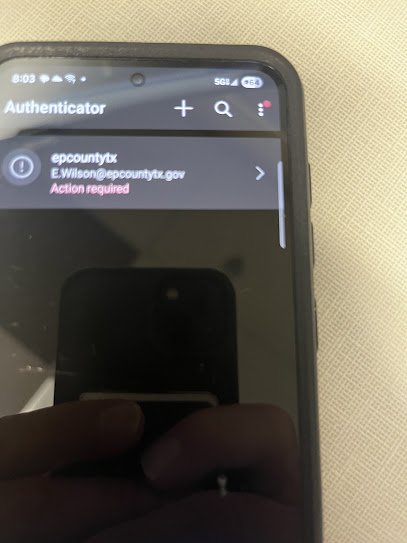
- Locate the settings gear (top right of my device screen)
- Select remove account:
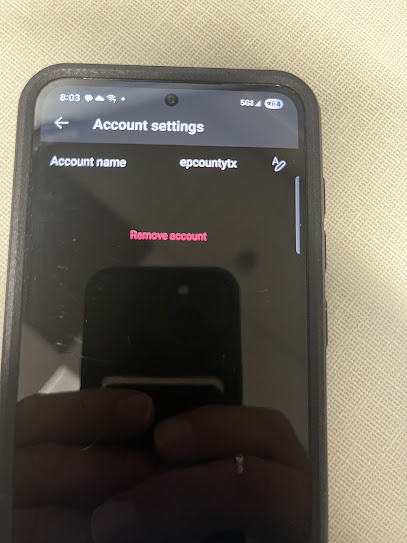
- Once all accounts are removed, Uninstall the application
OUTLOOK:
- Once you have removed the account from your android settings and authenticator if you use it, you can just uninstall the application.
Teams:
- Once you have removed the account from your android settings and authenticator if you use it, you can just uninstall the application.

