Sync Network Password with Local Account on Device
Last updated: Aug 12, 2026
80
views


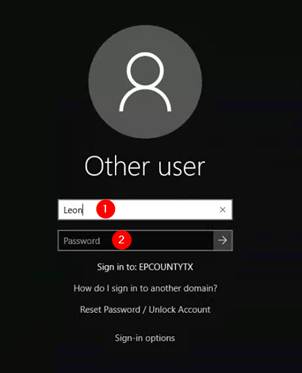
- Enter your username in the Username field
- Enter your previous password (do not use the new password you just created)
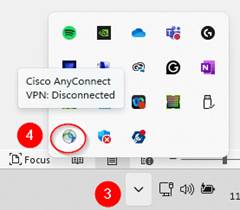
- Once logged in, click on the Show Hidden Icons on the taskbar at the bottom of the screen. This will launch VPN, and click Connect.
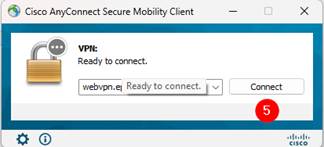
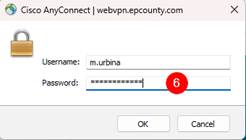
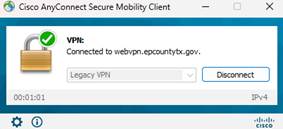
- Log into VPN using your new password that you created when you changed your password while on the network. You will see that you are now connected to the County Network through VPN.
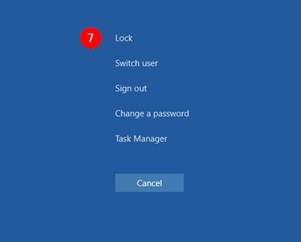
- On your keyboard, press the Ctrl+Alt+Del buttons simultaneously, and you will be directed to the screen below. Select Lock. The computer will lock, and the lock screen will appear.
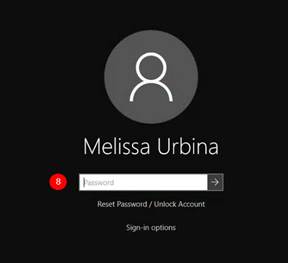
- After waiting 10 seconds, touch any key on the keyboard to prompt a login to the device. You should now be at a login screen. This time, to access the device, enter the new password that you created when you changed your password while on the network. The device will unlock, and you will be logged in. Successful login indicates that your local profile password and network password are now synced.