


Active Directory Self Service Enrollment for Internal Employees

Jun 30, 2026
22


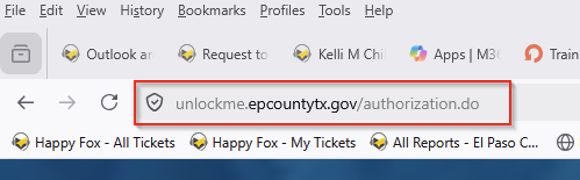
- Enter https://unlockme.epcountytx.gov/authorization.do into your browser's address bar.
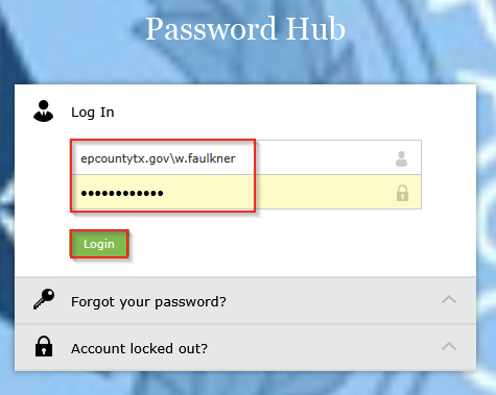
- Enter the county domain, your El Paso County network username, and your current password. Click Login
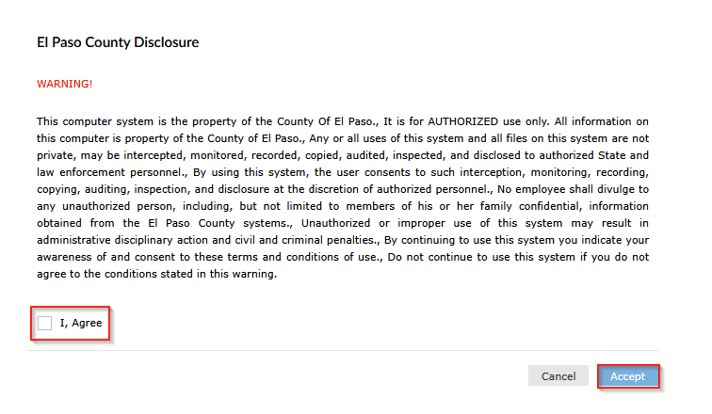
- The El Paso County Disclosure page will appear first. Click I Agree, then Accept.
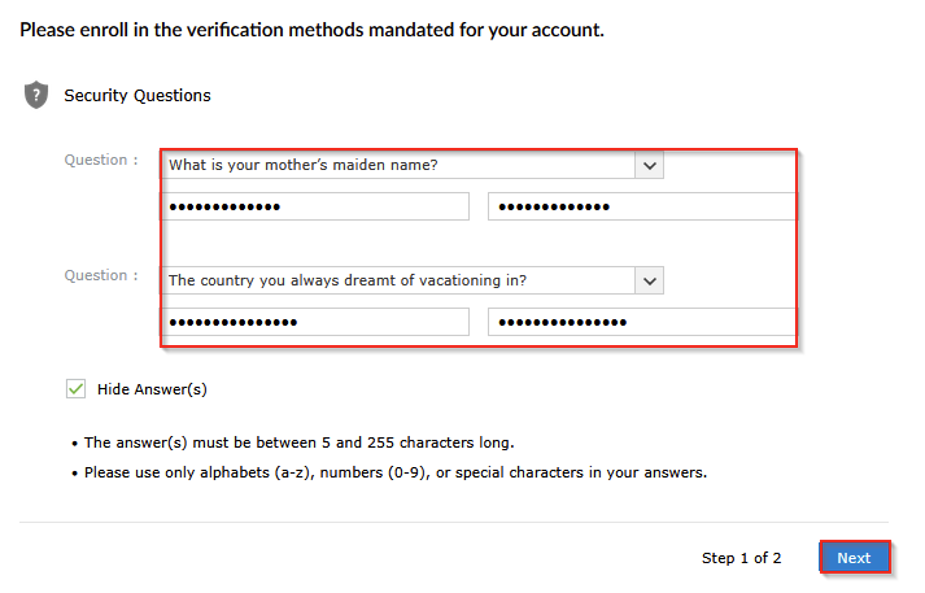
- Select two security questions from the drop-down list; enter the answer, and confirm the answer. When finished, click Next.
- Before proceeding to the final steps, you must install Microsoft Authenticator.
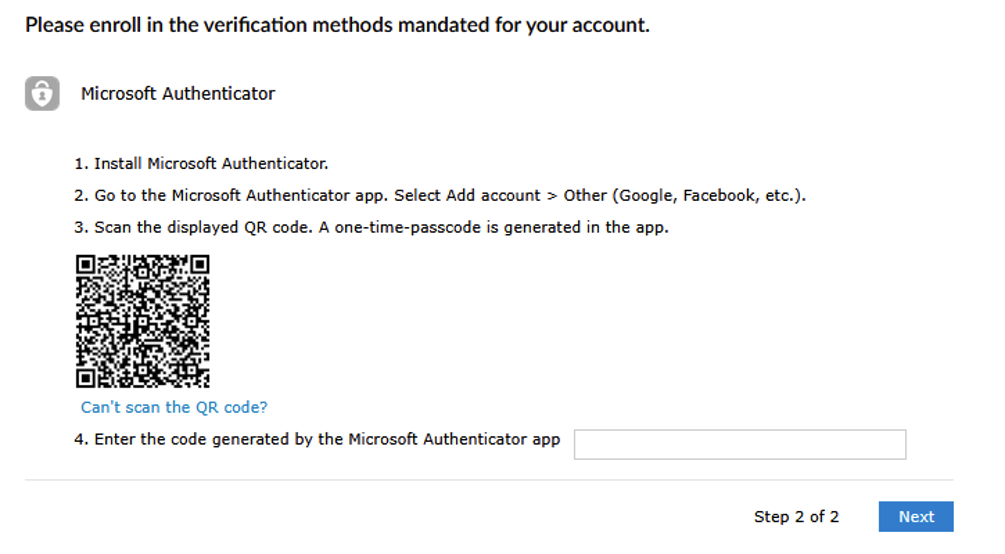
To install Microsoft Authenticator
Step 1: Open the App Store
- On your iPhone or iPad, tap the App Store icon.
- Tap the Search tab at the bottom of the screen.

Step 2: Search for Microsoft Authenticator
- In the search box, type Microsoft Authenticator.
- Locate Microsoft Authenticator in the search results.
- Verify the publisher is Microsoft.
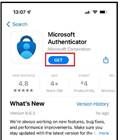
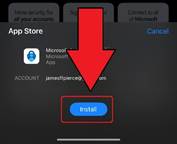
Step 3: Install the App
- Tap Get (or the cloud download icon if you previously installed it).
- Authenticate with Face ID, Touch ID, or your Apple ID password if prompted.
- Wait for the installation to complete.
Step 4: Open the App
- Tap Open from the App Store, or locate the app on your Home Screen.
- Review and accept any permissions requested by the app.
Step 5: Add Your Work or School Account
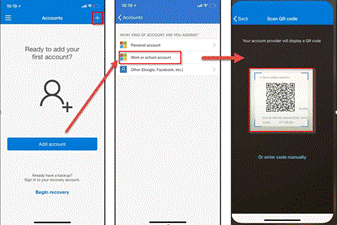
- Open Microsoft Authenticator.
- Tap Add Account (+).
- Select Work or School Account.
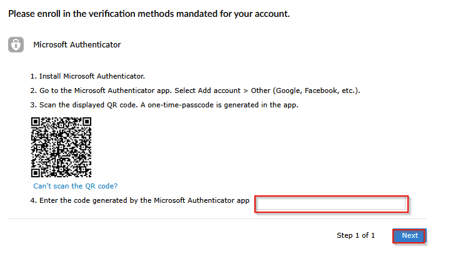
- Follow your organization's instructions to scan the QR code or sign in with your account
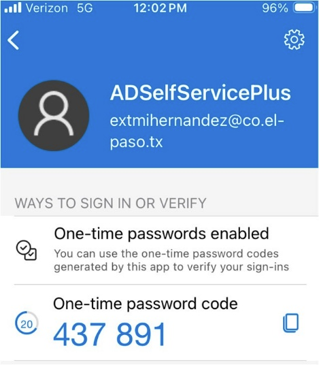
- Your device is now registered, and you may now receive passcodes. Enter the passcode into the ADSS Prompt. Click Next.
- You have now successfully registered your account to reset your El Paso County network password or unlock your El Paso County network account using ADSS.

