JAILog allows administrators to manage the equipment groups and the equipment codes available to be selected. The system allows you to do the following actions outlined below with each point having its own section and list of steps.
Equipment groups
- Add a new group
- Used when adding a new group
- Update a group
- Used when something was misspelled
- Need to update for any other reason
- Inactivate a group
- Used when an equipment group is no longer accessible or used
- Used when an equipment group is duplicated
- Activate an inactive group
- Used when an equipment group is accidentally inactivated
- Reorder groups
- Change how groups are presented to the user
Equipment Codes
- Add a new code
- Used when adding a new code
- Update a code
- Used when something was misspelled
- Need to update for any other reason
- Inactivate a code
- Used when an equipment code is no longer accessible or used
- Used when an equipment code is duplicated
- Activate an inactive code
- Used when an equipment code is accidentally inactivated
- Reorder codes
- Change how codes are presented to the user
Equipment Groups
Add a new group
Log in as an administrator
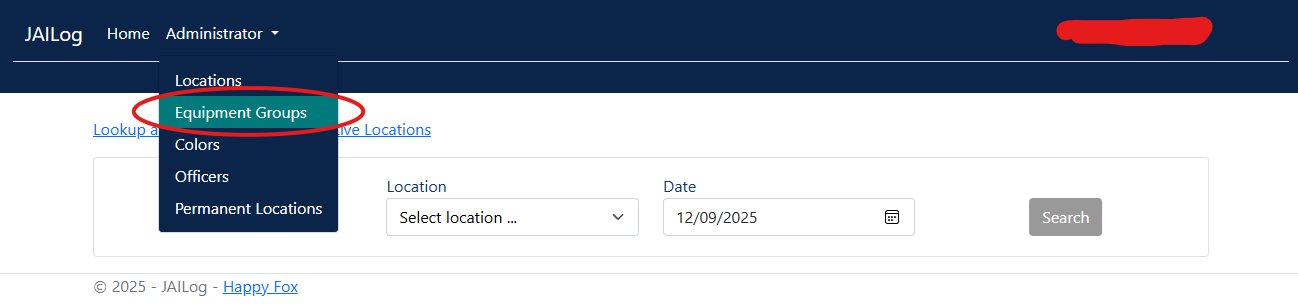
You should be able to see the [Administrator] tab at the top. Click on it, and head down to [Equipment Groups] and click that
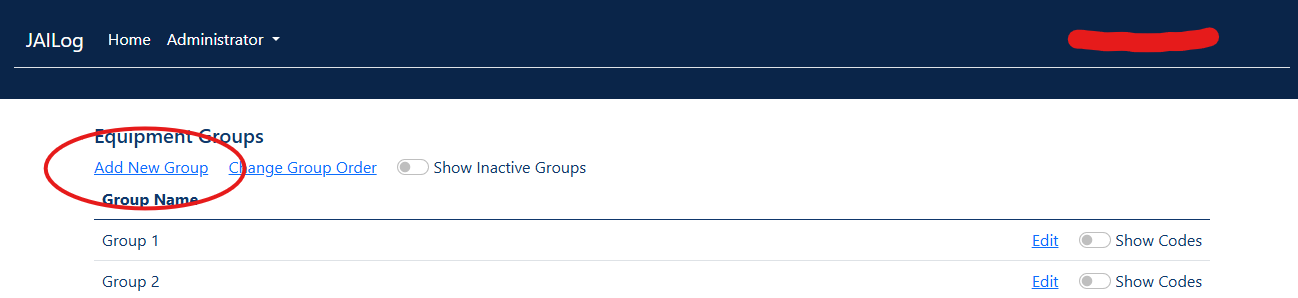
From here you can see all the equipment groups created. We are displaying example groups for security reasons. Click on the [Add new group] link.
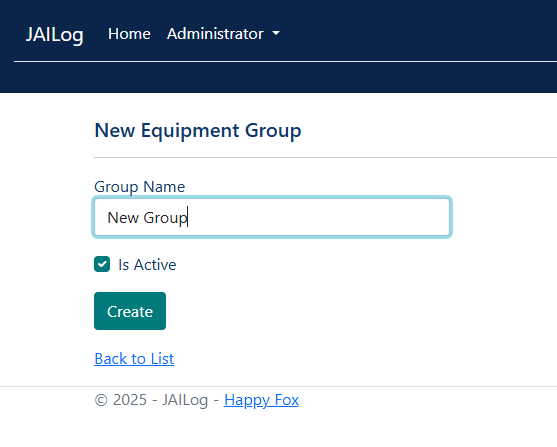
In this page you have to add name of the new equipment group. Click [Create] to add the group
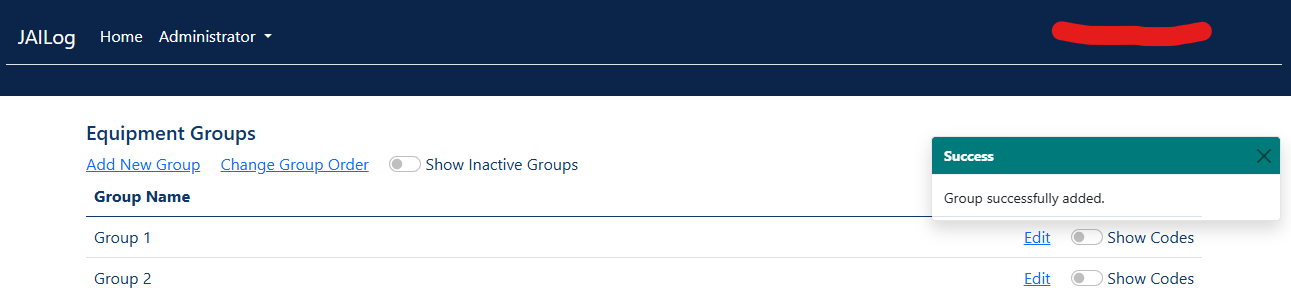
You will be sent back to the equipment group list page, and a message should appear on the top right letting you know the group was added.
Update a group
Log in as an administrator
You should be able to see the [Administrator] tab at the top. Click on it, and head down to [Equipment Groups] and click that
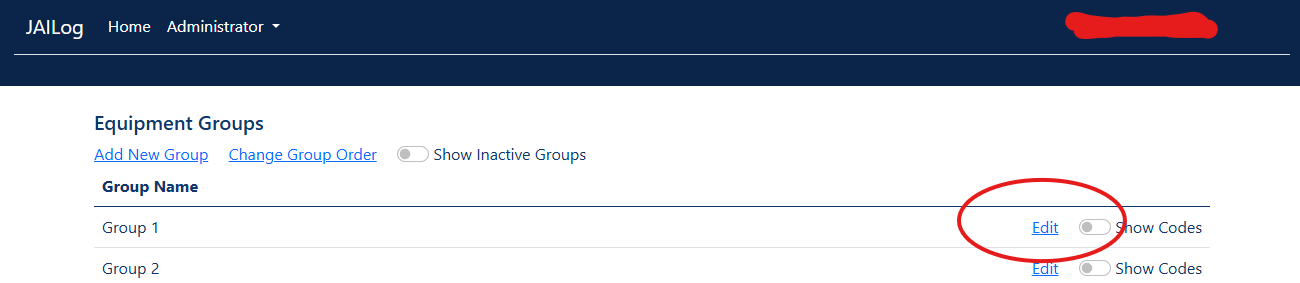
From here you can see all the equipment groups created. We are displaying example groups for security reasons. Look for the group you want to update, groups as listed in the order they were set at. Please refer to the Reorder Groups section to learn how to change the order of the groups. Once you find the group you want to update, click on [Edit]
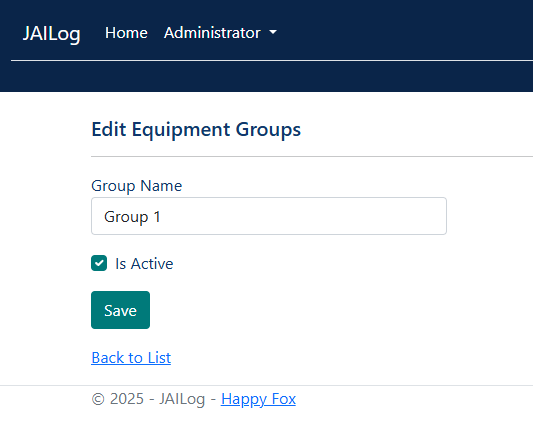
In this page you can change the values of the group. Make whatever changes you need and click on [Save].
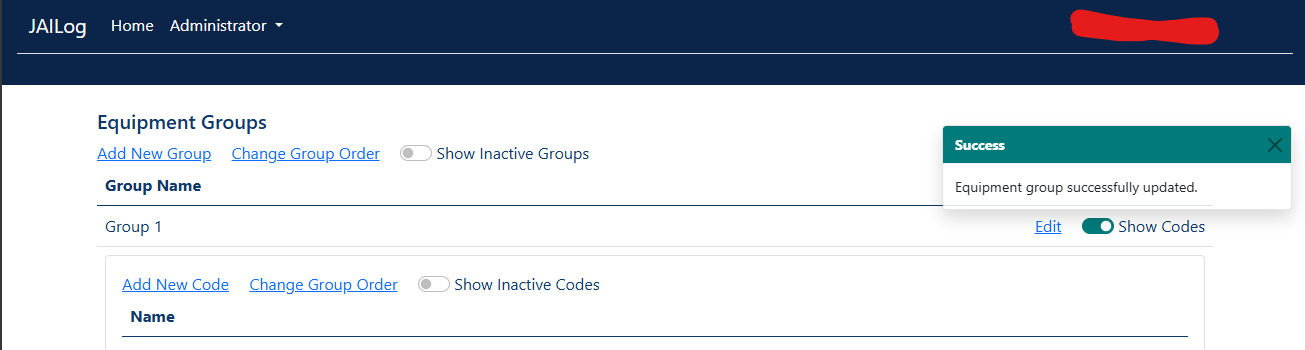
You will be sent back to the equipment group list page, and a message should appear on the top right letting you know the group was updated.
Inactivate a group
Log in as an administrator
You should be able to see the [Administrator] tab at the top. Click on it, and head down to [Equipment Groups] and click that
From here you can see all the equipment groups created. We are displaying example groups for security reasons. Look for the group you want to update, groups as listed in the order they were set at. Please refer to the Reorder Groups section to learn how to change the order of the groups. Once you find the group you want to update, click on [Edit]
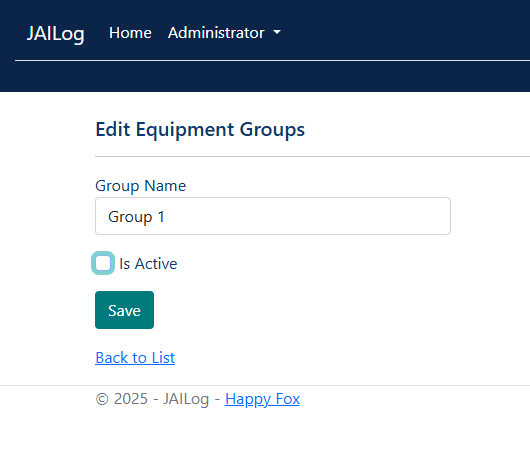
In this page you can change the values of the group. Make sure the [Active] is unchecked and click [Save]
You will be sent back to the equipment group list page, and a message should appear on the top right letting you know the group was updated
Activate an inactive group
Log in as an administrator
You should be able to see the [Administrator] tab at the top. Click on it, and head down to [Equipment Groups] and click that
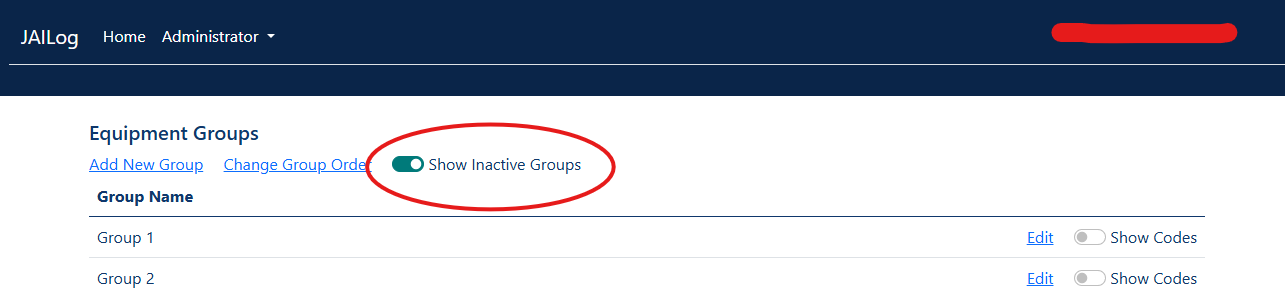
From here you can see all the equipment groups created. We are displaying example groups for security reasons. At the top there is a toggle that you can click on to load inactive groups called [Show inactive groups], click on that to display inactivated groups. Inactivated groups will become visible at the bottom of the page. Once you find the group you want to update, click on [Edit]

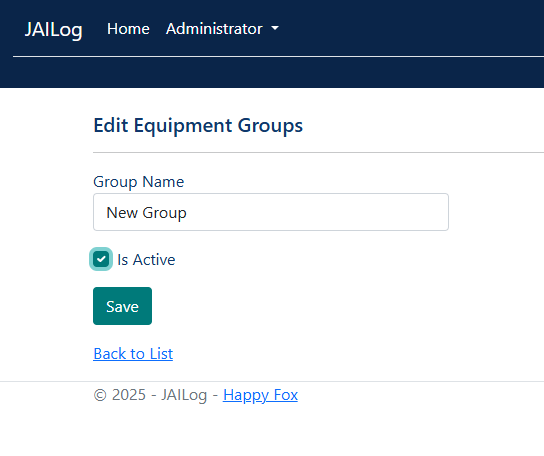
In this page you can change the values of the group. Make sure the [Active] is checked and click [Save]
You will be sent back to the equipment group list page, and a message should appear on the top right letting you know the group was updated
Reorder groups
Log in as an administrator
You should be able to see the [Administrator] tab at the top. Click on it, and head down to [Equipment Groups] and click that
From here you can see all the equipment groups created. We are displaying example groups for security reasons. Click on the [Change group order] link.
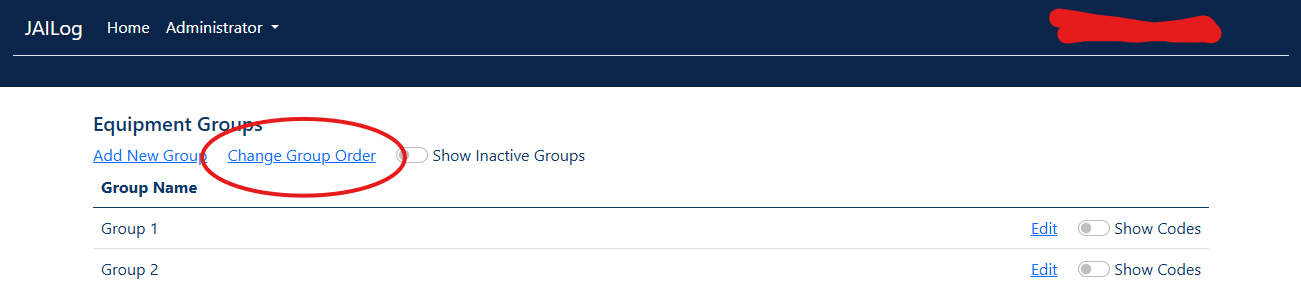
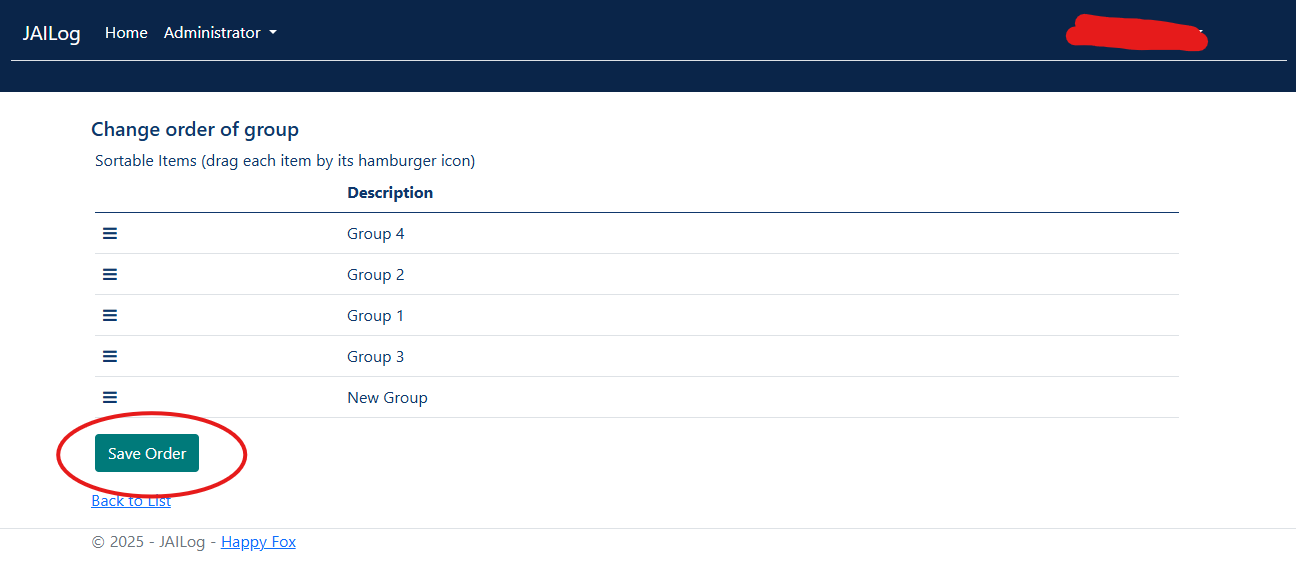
This page will list the equipment groups in their current order. Grab the hamburger icon on the left and drag the groups in any order you want. When you are done, make sure to click on [Save Order]
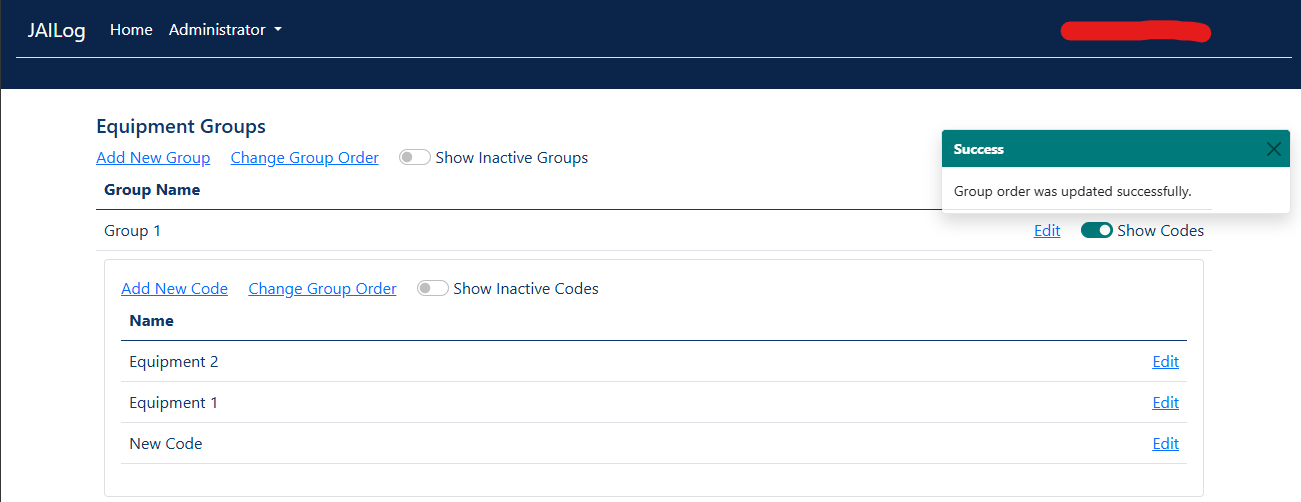
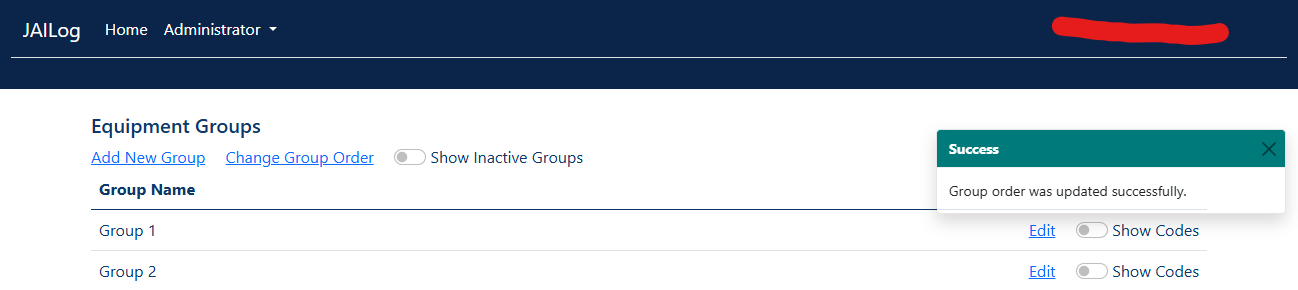
You will be sent back to the equipment group list page, and a message should appear on the top right letting you know the group order was updated
Equipment Codes
Add a new code
Log in as an administrator
You should be able to see the [Administrator] tab at the top. Click on it, and head down to [Equipment Groups] and click that
From here you can see all the equipment groups created. We are displaying example groups for security reasons. Select which group you want the new code to exist in, and click on the toggle [Show codes]
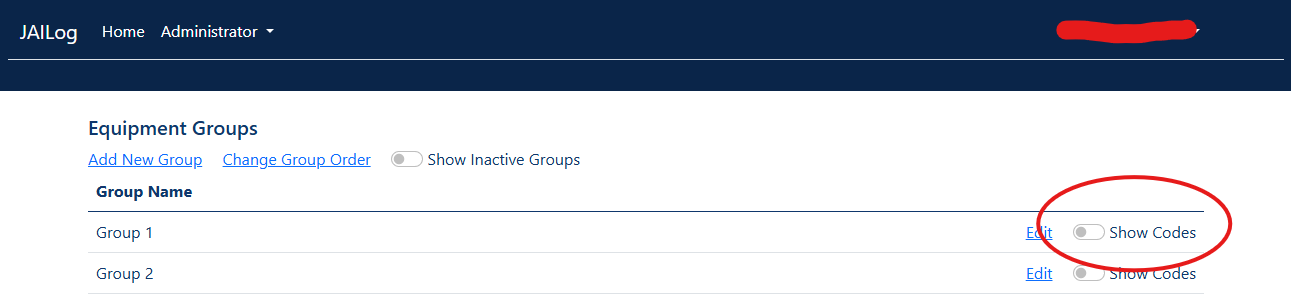
The codes for the group will be displayed, click on [Add new code]

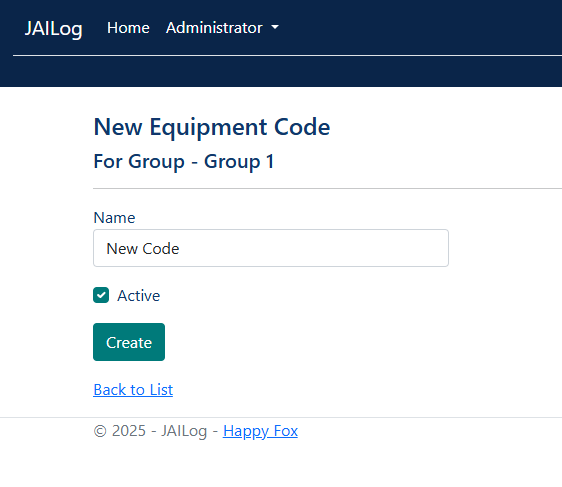
In this page you have to add name of the new equipment code. Click [Create] to add the code to the group
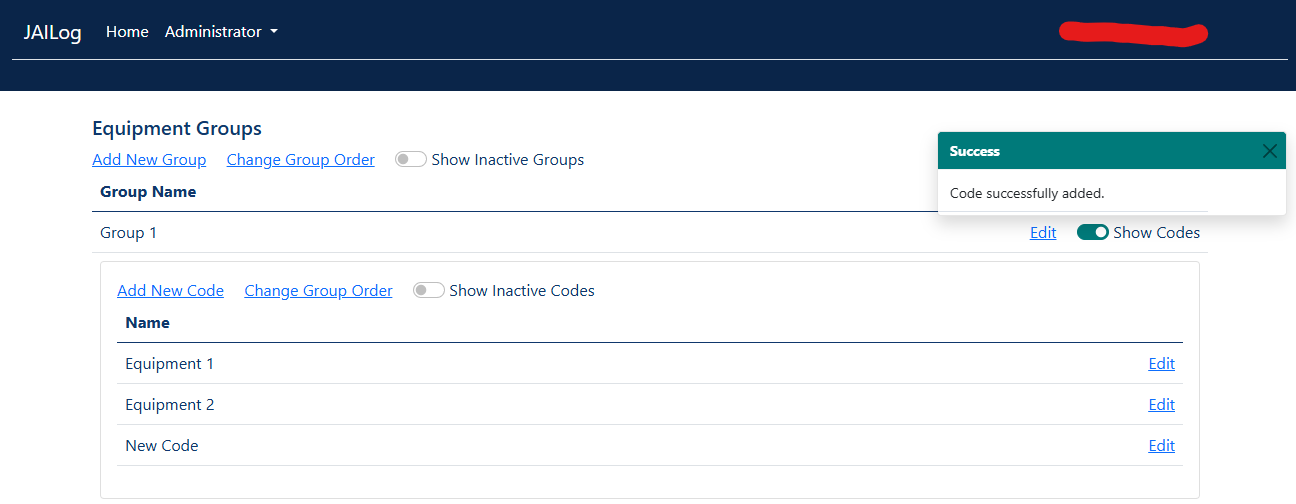
You will be sent back to the equipment group list page, and a message should appear on the top right letting you know the code was added
Update a code
Log in as an administrator
You should be able to see the [Administrator] tab at the top. Click on it, and head down to [Equipment Groups] and click that
From here you can see all the equipment groups created. We are displaying example groups for security reasons. Select which group that contains the code you want to edit and click on the toggle [Show codes]
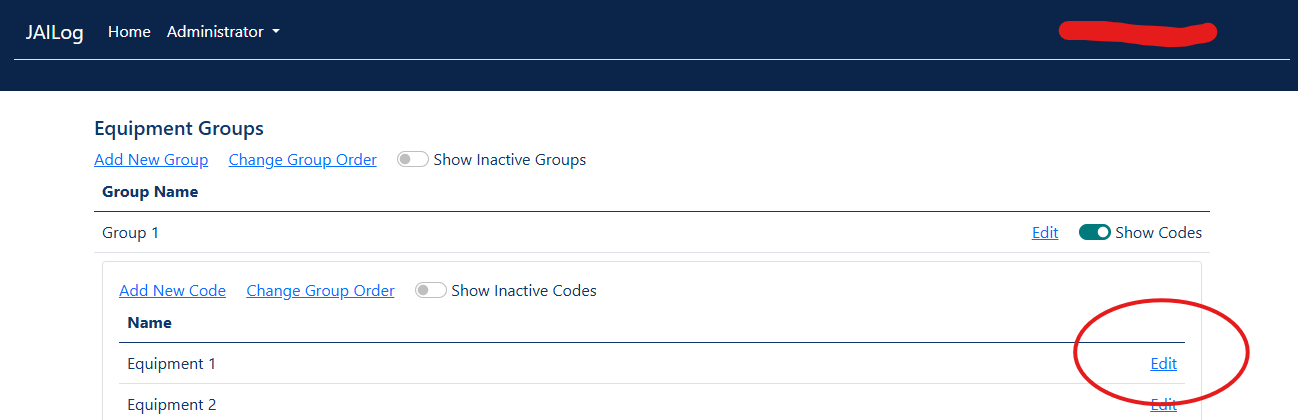
The codes for the group will be displayed, identify the code you want to update and click on [Edit]
In this page you can change the values of the code. Make whatever changes you need and click on [Save].

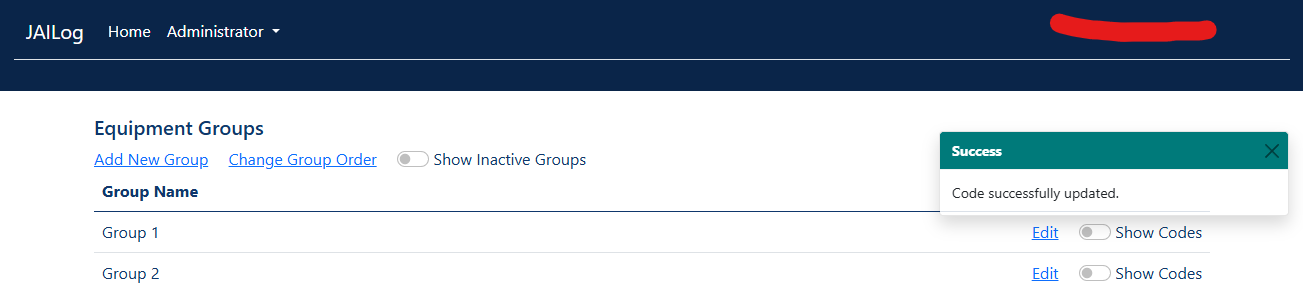
You will be sent back to the equipment group list page, and a message should appear on the top right letting you know the code was updated
Inactivate a code
Log in as an administrator
You should be able to see the [Administrator] tab at the top. Click on it, and head down to [Equipment Groups] and click that
From here you can see all the equipment groups created. We are displaying example groups for security reasons. Select which group that contains the code you want to edit and click on the toggle [Show codes]
The codes for the group will be displayed, identify the code you want to update and click on [Edit]
In this page you can change the values of the code. Make sure the [Active] is unchecked and click [Save]
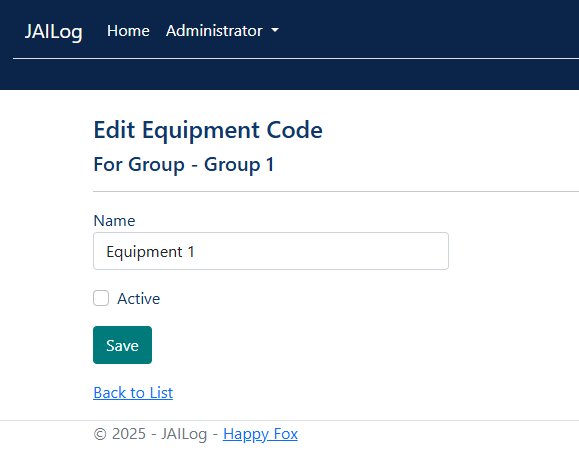
You will be sent back to the equipment group list page, and a message should appear on the top right letting you know the code was updated
Activate an inactive code
Log in as an administrator
You should be able to see the [Administrator] tab at the top. Click on it, and head down to [Equipment Groups] and click that
From here you can see all the equipment groups created. We are displaying example groups for security reasons. Select which group that contains the code you want to edit and click on the toggle [Show codes]
The codes for the group will be displayed, on the top of the expanded box there is another toggle called [Show inactive codes], click on that
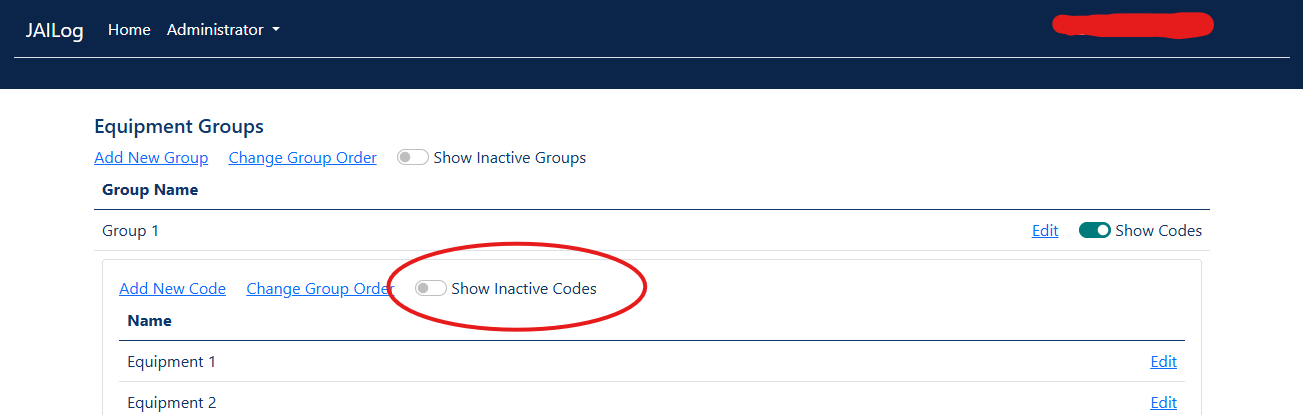
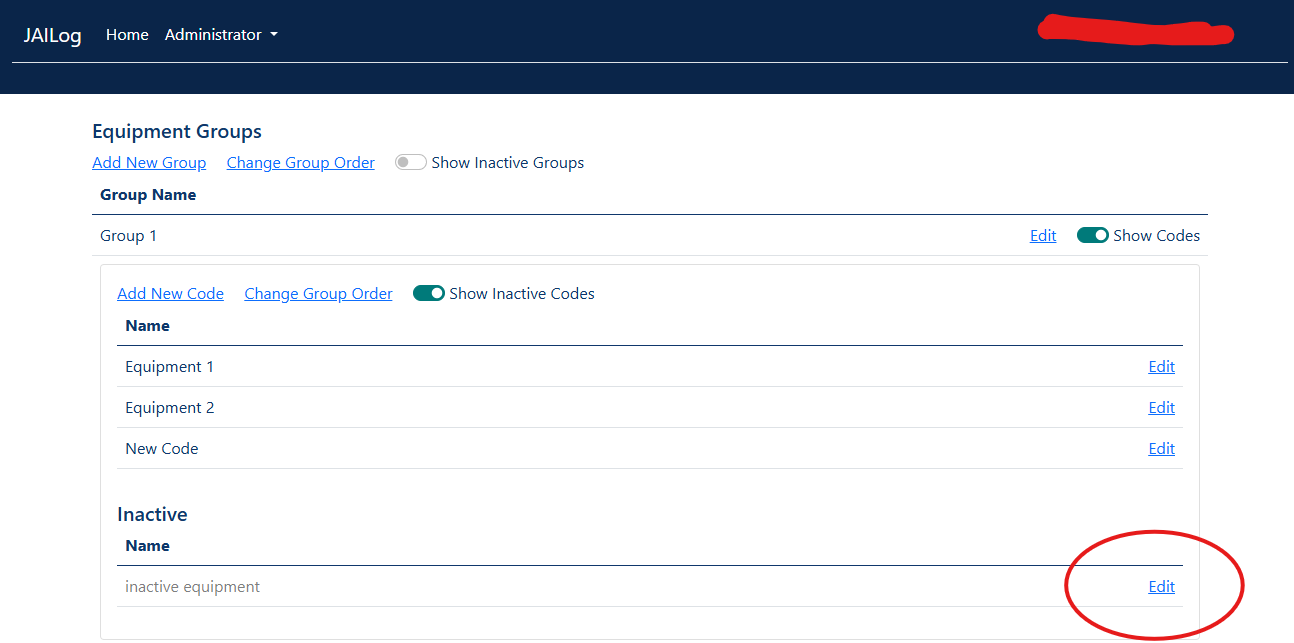
Another expanded box will appear displaying the inactive codes for this group. Select the inactive code you want to update and click [Edit]
In this page you can change the values of the code. Make sure the [Active] is checked and click [Save]
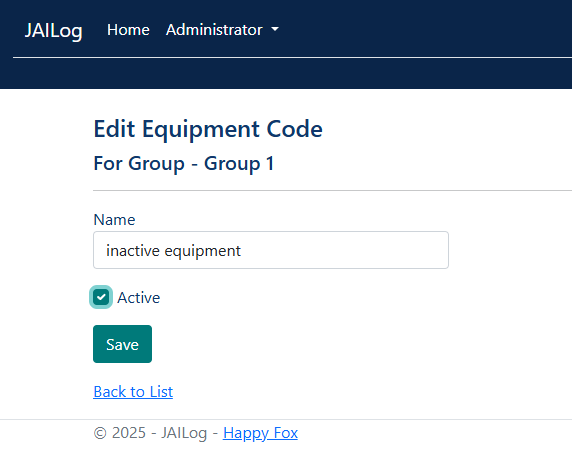
You will be sent back to the equipment group list page, and a message should appear on the top right letting you know the code was updated
Reorder codes
Log in as an administrator
You should be able to see the [Administrator] tab at the top. Click on it, and head down to [Equipment Groups] and click that
From here you can see all the equipment groups created. We are displaying example groups for security reasons. Select which group that contains the code you want to edit and click on the toggle [Show codes]
The codes for the group will be displayed, on the top of the expanded box there is a link that says [Change code order], click on that
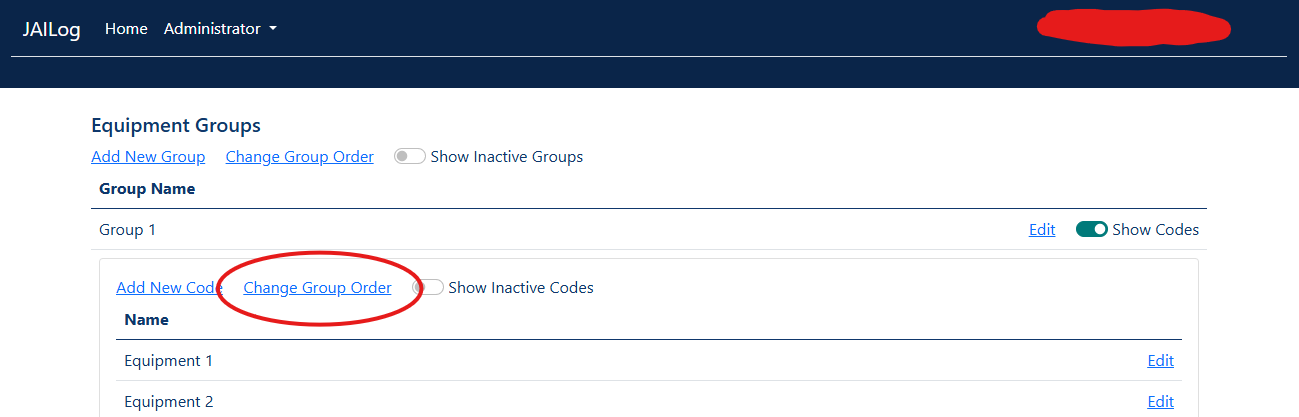
This page will list the equipment codes in their current order. Grab the hamburger icon on the left and drag the groups in any order you want. When you are done, make sure to click on [Save Order]
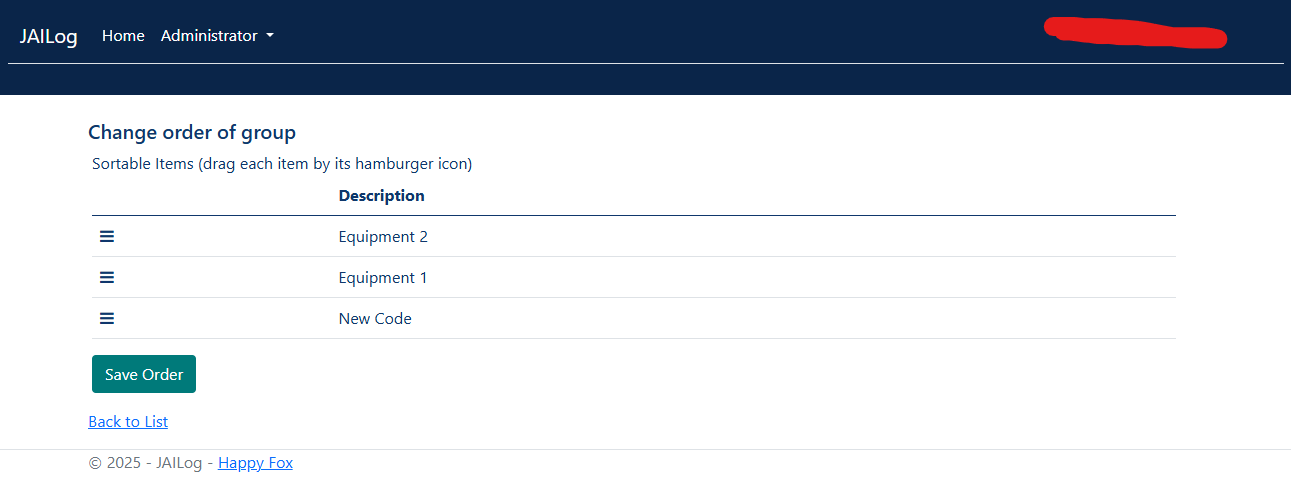
You will be sent back to the equipment group list page, and a message should appear on the top right letting you know the code was updated