


 5
5
If the Calls for Service are not coming through into OnCall Records the following must be checked.
The IFCADRMSLink and Listener Services must both be turned on. These services are located on the WRMSINT01 server within the ISM Administration application.
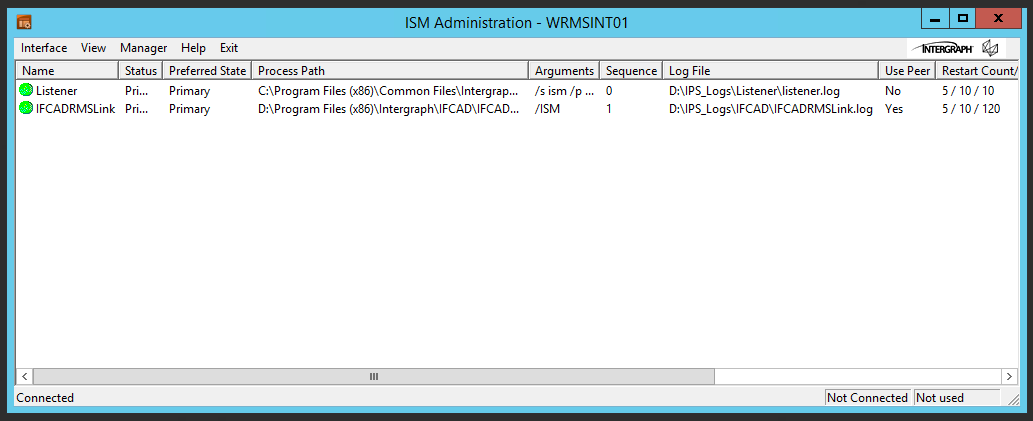
The Listener service connects to the 911 CAD Database: ELPDAOL if it cannot turn on it is having issues connecting to the ELPDBAOL Database. You can look at Rebooting WRMSINT01 for troubleshooting on Listener service.
If Listener cannot turn on:
It might be having issues connecting to the CAD Database which is ELPDBAOL. Run ping and trace commands in the terminal to verify the connection
ping ELPDBAOL
tracert ELPDBAOL
Contact the City and 911 Communications if it cannot ping the DB.
If it is able to connect but Listener is not coming up, contact Hexagon for assistance.
The IFCADRMSLink service connects to the app servers and import messages into the queue. If it is having trouble turning on it might have issues connecting to the app servers. You can look at the Log file located in D:\IPS_Logs\IFCAD and it will be titled IFCADRMSLink###. These logs will show why IFCADRMSLink service was shut down/turned off/disconnected.
If IFCADRMSLink cannot turn on:
It is most likely the servers were rebooted in the incorrect order. If the INT01 server is rebooted before the APP servers, then it will cause the IFCADRMSLink service to hang and not come up because the Edgefrontier services need to be offloaded again. The APP servers must be rebooted before the INT01 server in order for the services to come up.
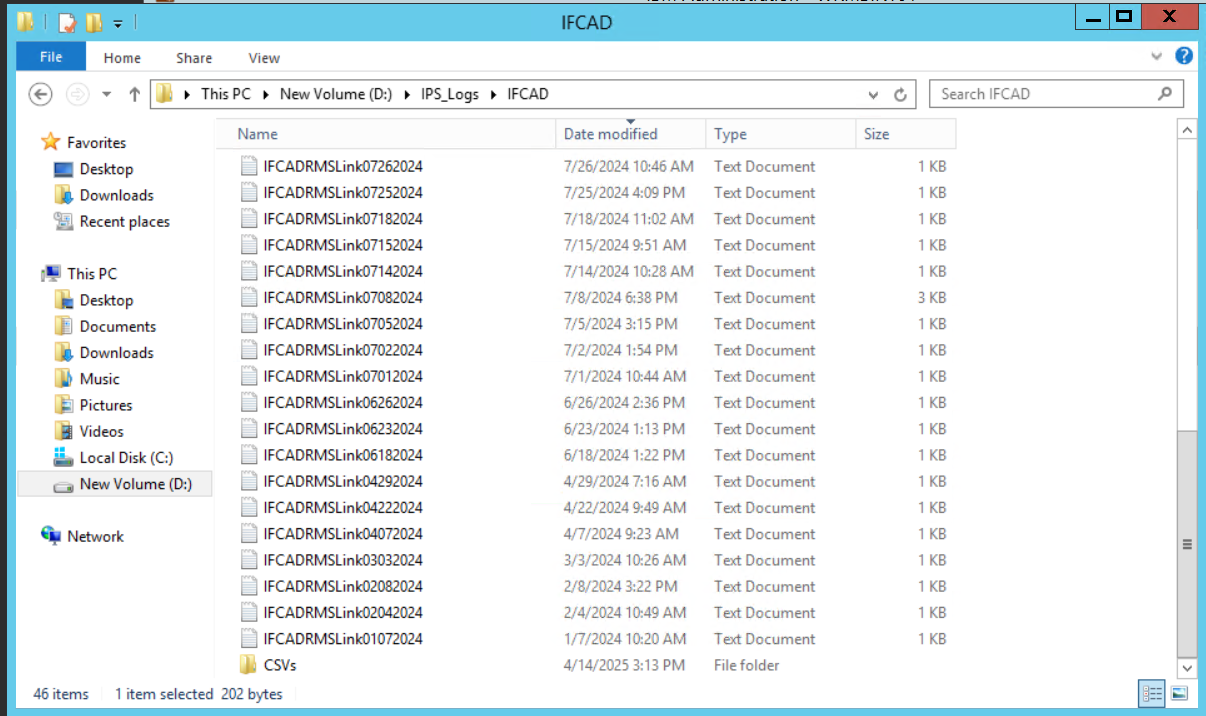
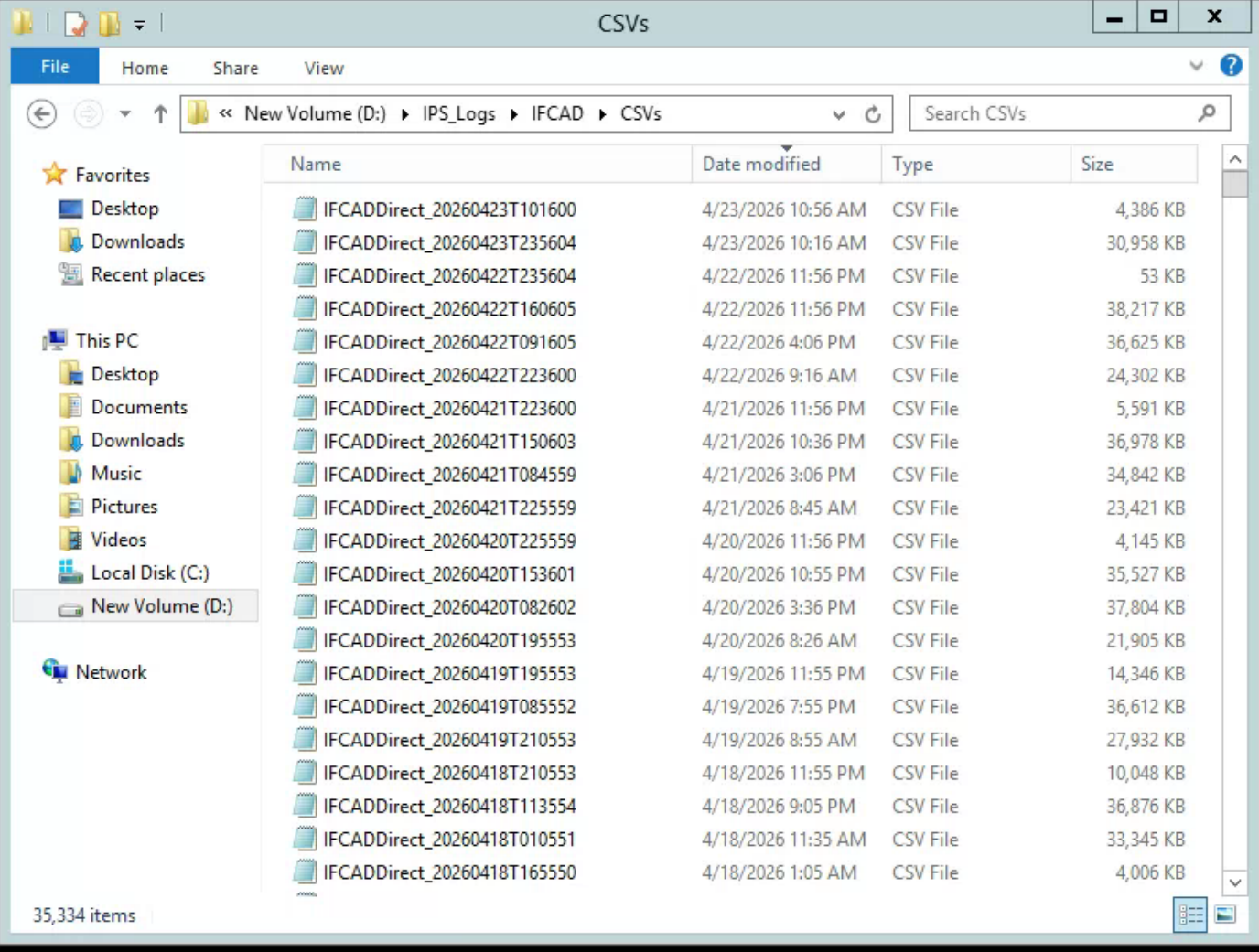
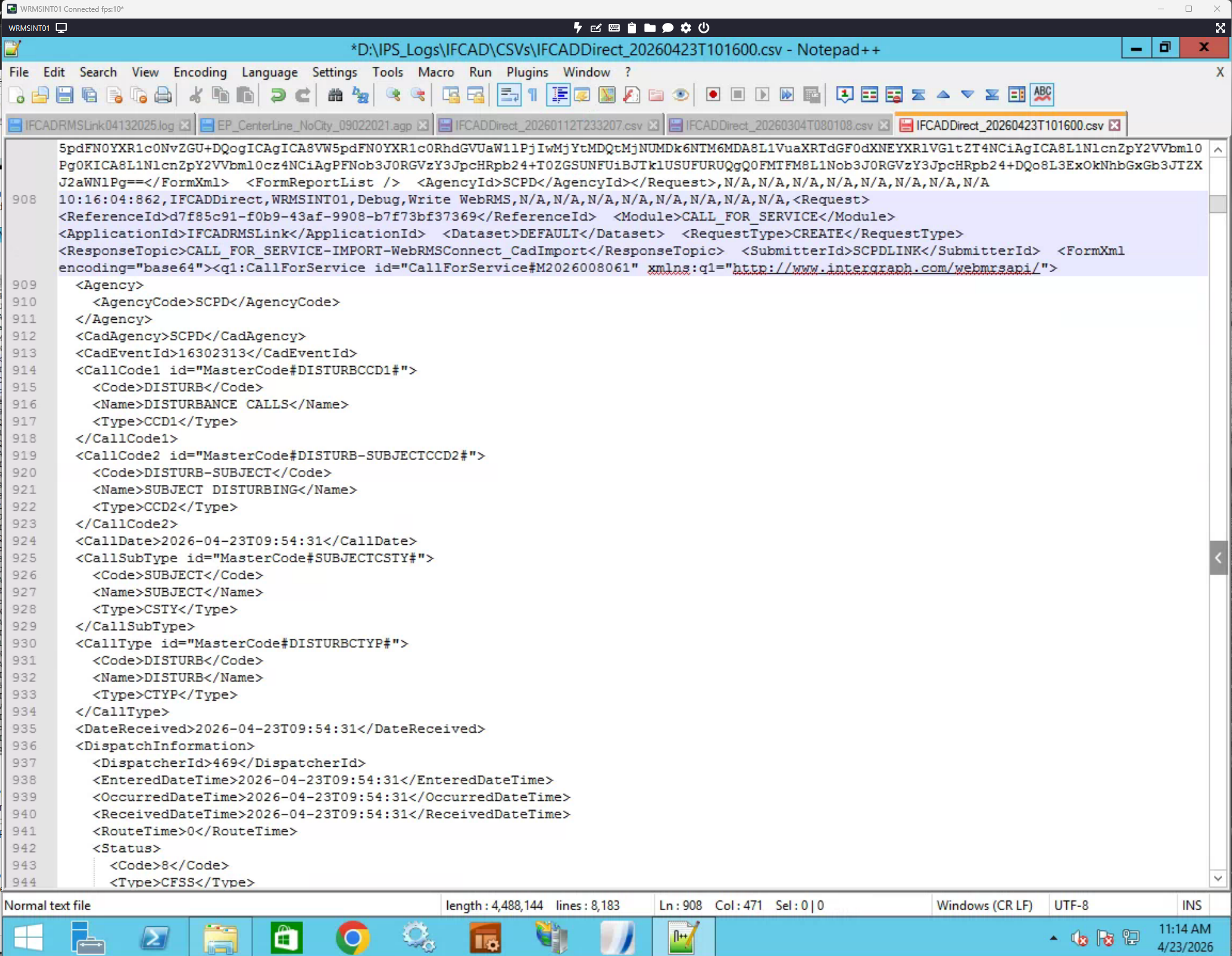
The logs located in D:\IPS_Logs\IFCAD\CSVs will show a log of what is being received from CAD. You can check these logs on each app server to verify the data from CAD and ensure it is being
received.
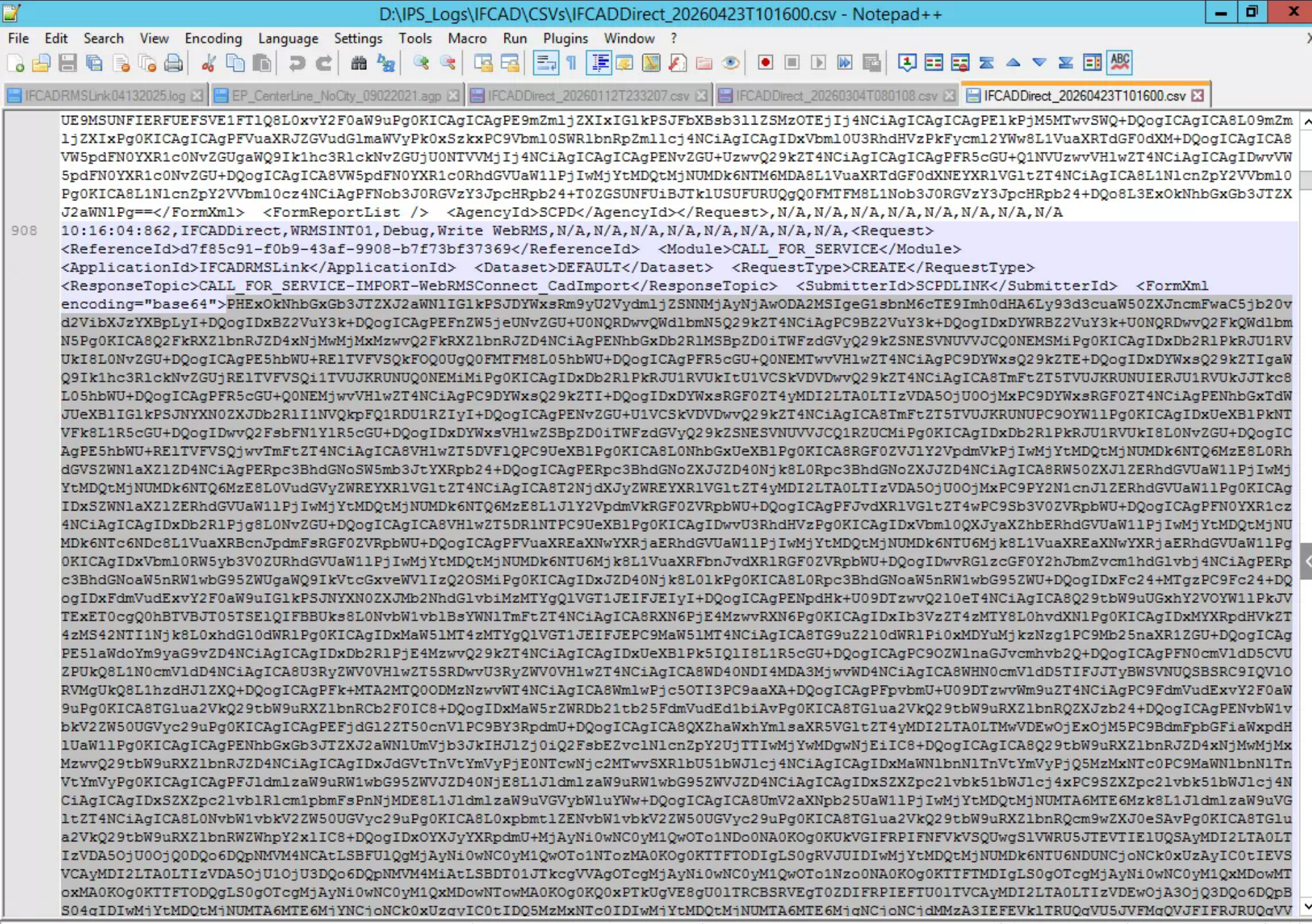
To review these logs that are received from CAD, open/edit the files using Notepad++ and scroll down to the area of the file where there is encrypted data. It is usually set after "base 64">. Highlight the entire base 64 encrypted section and select Plugins>MIME Tools>Base 64 decode. This will decrypt the data and allow you to see the Call for Service data received from CAD.
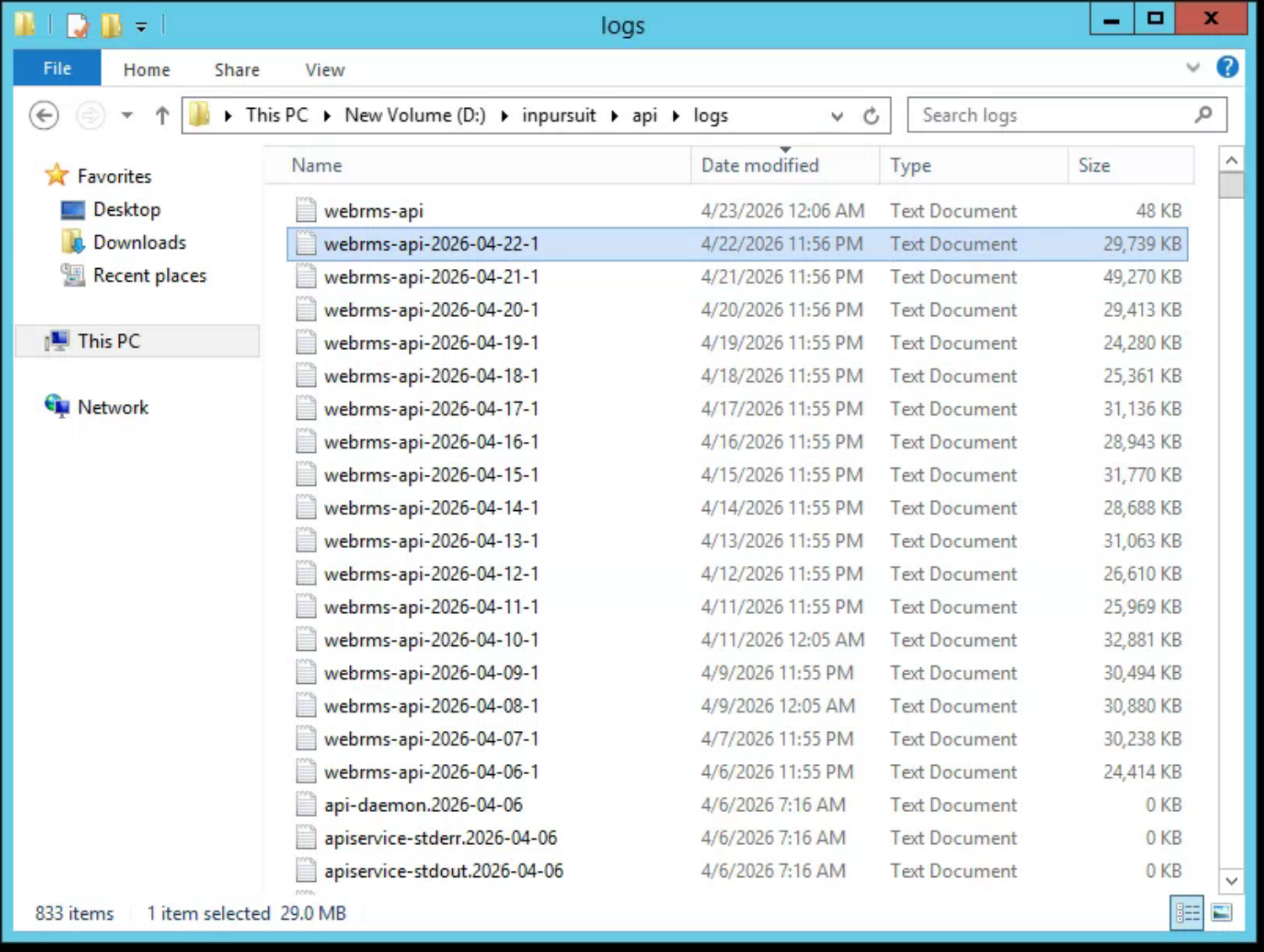
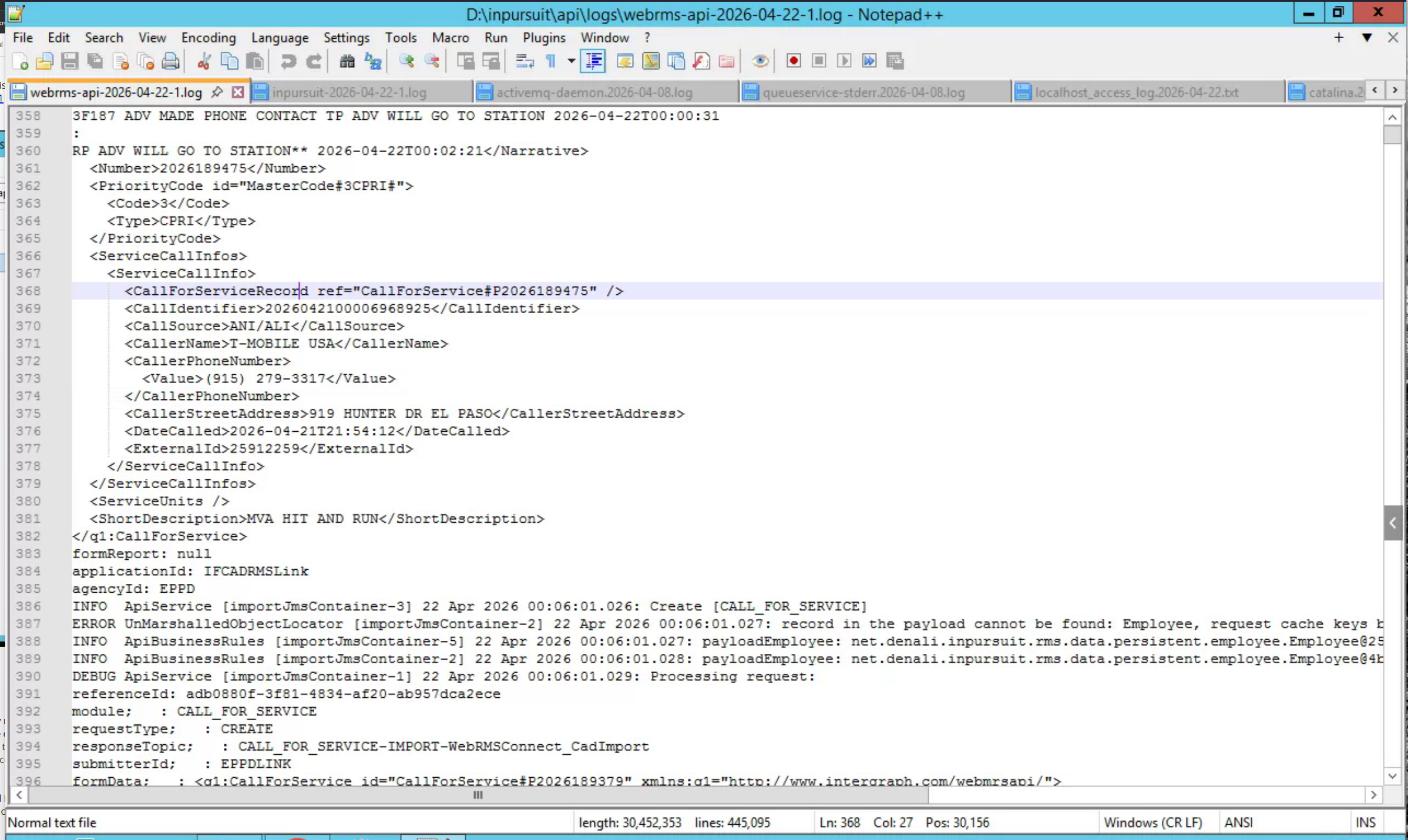
On the APP Servers, there are similar logs located in D:\inpursuit\api\logs. This is the data that is received from INT01 and is getting pushed to the Active MQ to get the Call for Service imported into OnCall Records. This shows the same data in the encrypted logs on WRMSINT01 but it is already decrypted. You can compare the data from both logs to verify nothing is getting lost when getting transferred over.
The queues can get overloaded sometimes when the IFCAD service goes down for a while since it imports a huge bulk of cases at once when it gets turned back on. When the Active MQ queues get flooded with data, they will get stuck and stop processing. To check the queues, you can login to the APP1, APP2, or APP3 and verify the queues are processing. Each of the APP servers have their own Active MQ to process so you much check all 3. APP4 does not have an Active MQ running, the queues only run on APP1, APP2, and APP3. You can review the queues by going to this site one of the app servers:
http://wrmsapp#:8161/admin/queues.jsp
Replace the # sign for the app server queue you are wanting to check. You will be prompted to enter credentials; you can find the necessary credentials in KeePass. Be sure to check all 3 app queues.
The specific queue that needs to be check for the Calls for Service getting imported is the Number of Pending Messages column in the WebrmsImport queue. There should never be more than 20k pending messages in the queues because this will cause the queues to get overloaded and stuck.
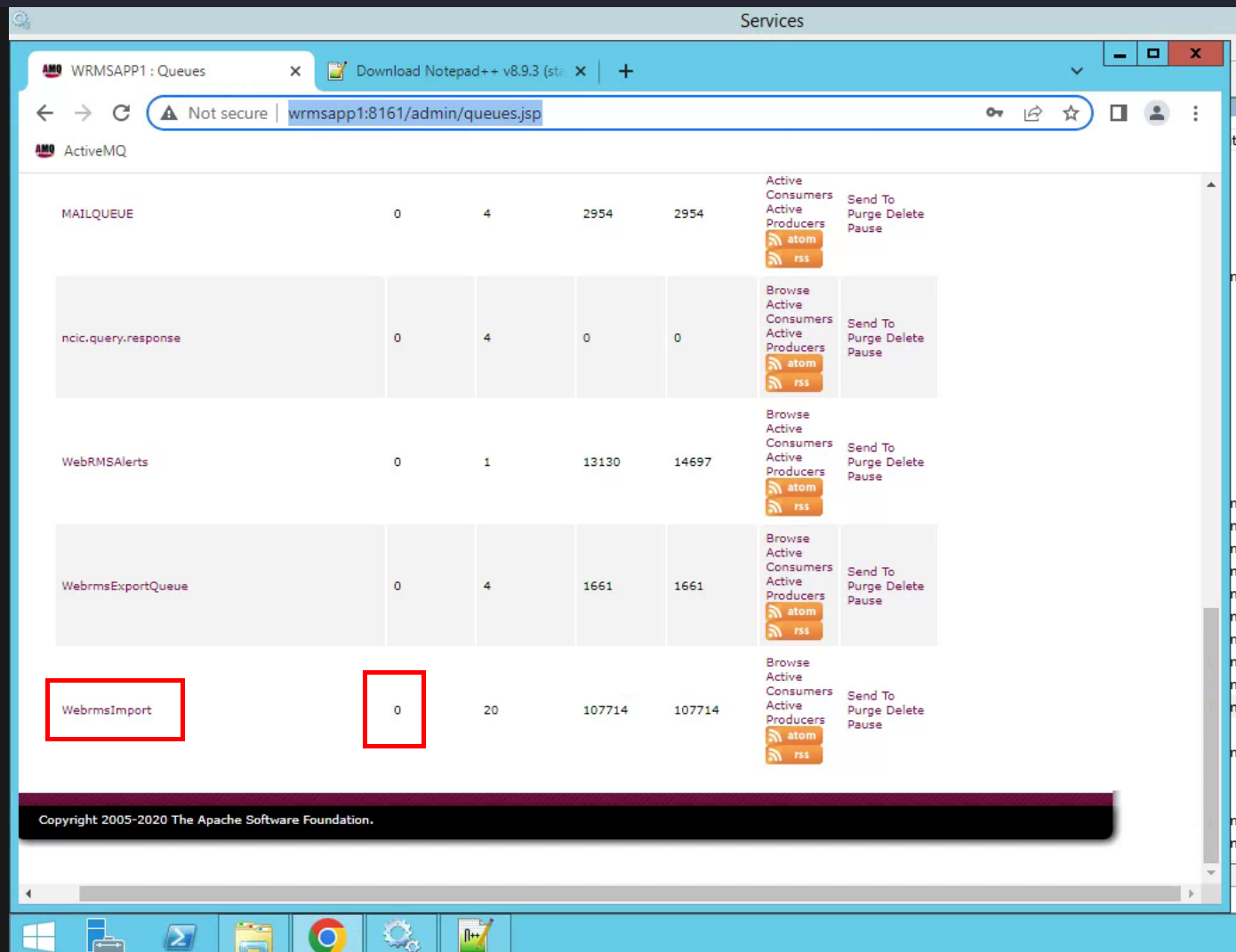
If the pending messages are over 20,000 messages, then stop the IFCADRMSLink service on WRMSINT01 so the queues have time to catch up and process the pending messages. If the queues stay stuck and continue to not process, you can restart the Inpursuit WebRMS API Service on each of the app servers. If messages continue to stay stuck and not process, reach out to the vendor and submit a ticket as a P1 issue. Once the pending messages process through you may turn the IFCADRMSLink service back on. Once it is turned back on, monitor the queues on all app servers and make sure they get processes. If they start to go past 40,000 again, repeat the process and turn off the IFCADRMSLink service until it catches up, then start it again. You may leave the service on if it does not reach the threshold of 20,000.
If the IFCADRMSLink is down for longer than an hour then it needs to be turned back on in small chunks so that it does not overload the queues. Start it and let it send some messages to the queue before it gets overloaded and then turn it back off. Keep turning it on and back off until it is able to be turned on without flooding the queues.

